
Table of Contents
If you’re wondering how to secure home WiFi from hackers step by step, you’re already taking the right approach. For freelancers and small business owners in the U.S., a secure WiFi network is more than just internet access—it’s the gateway to client data, financial information, cloud storage, and daily business operations.
Cybercriminals don’t just target large companies. They often look for home networks with weak passwords, outdated routers, or poor security settings because they’re easier to exploit. The good news is that you don’t need expensive equipment or advanced technical skills to strengthen your WiFi security.
In this guide, you’ll learn how to secure home WiFi from hackers step by step using practical actions that anyone can follow.
Why Securing Your Home WiFi Matters
Whether you run a freelance business, an online store, or a small startup, your WiFi network connects nearly every device you use.
If a hacker gains access to your network, they may be able to:
- Steal business documents
- Access saved passwords
- Spy on internet activity
- Infect connected devices with malware
- Attack smart home devices
- Slow your internet connection
A single compromised network can lead to lost clients, financial damage, and expensive recovery costs.
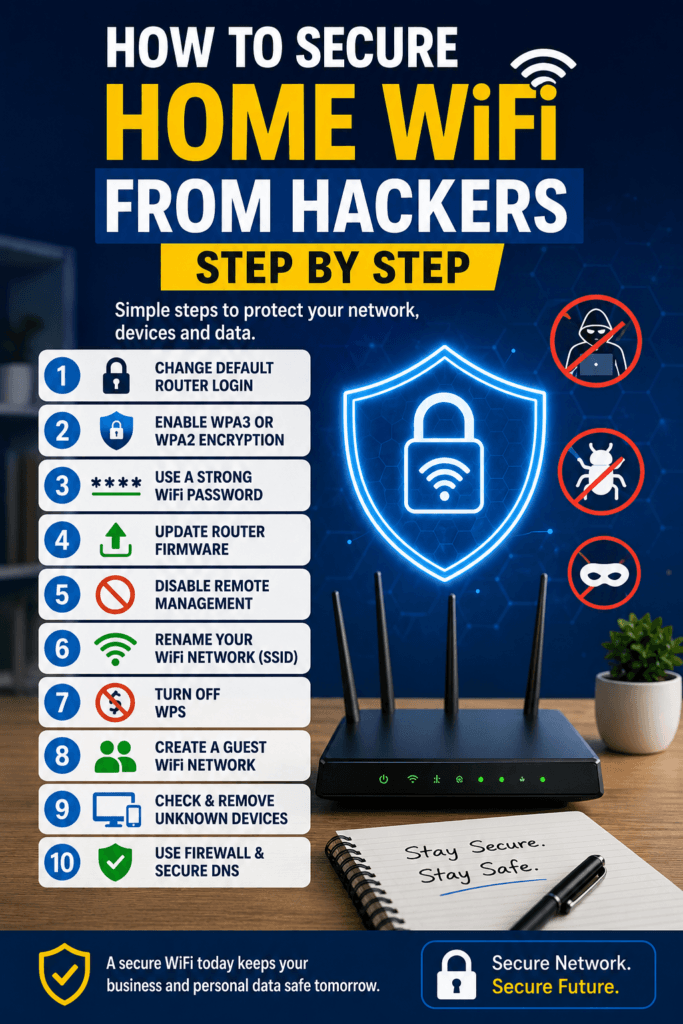
Step 1: Change the Default Router Login
The first step in how to secure home WiFi from hackers step by step is replacing the router’s default administrator username and password.
Many routers come with factory credentials like:
- admin/admin
- admin/password
Hackers know these defaults and can easily find them online.
Instead:
- Create a unique administrator username (if your router allows it).
- Use a password that’s at least 16 characters long.
- Include uppercase letters, lowercase letters, numbers, and symbols.
Never reuse passwords from your email or banking accounts.
Step 2: Enable WPA3 or WPA2 Encryption
Encryption protects the information sent between your devices and your router.
Log into your router settings and select:
- WPA3-Personal (best option)
- WPA2-AES (if WPA3 isn’t available)
Avoid:
- WEP
- WPA
- Mixed WPA/WEP modes
These older security standards are vulnerable to attacks.
The Cybersecurity and Infrastructure Security Agency recommends using modern encryption to help protect wireless networks from unauthorized access.
Step 3: Create a Strong WiFi Password
Another important step in how to secure home WiFi from hackers step by step is replacing weak WiFi passwords.
Avoid passwords like:
- 12345678
- password123
- yourlastname2025
Instead, create a long passphrase such as:
Coffee$River!Bike2026Sun
Long passwords are significantly harder to crack than short, complex-looking passwords.
Store your passwords inside a trusted password manager instead of writing them on paper.
Step 4: Update Your Router’s Firmware
Router manufacturers regularly release firmware updates that fix security vulnerabilities.
An outdated router may contain flaws hackers already know how to exploit.
Check for updates by:
- Logging into your router dashboard.
- Opening Firmware Update.
- Installing the latest version.
- Restarting the router.
Many modern routers even support automatic firmware updates.
The Federal Communications Commission also encourages consumers to keep networking equipment updated to improve security.
For even stronger protection, check out our guide on the Best Router Settings for Home Security 2026 to optimize your router’s security and keep hackers
Step 5: Disable Remote Management
Many routers allow remote administration over the internet.
Unless you specifically need this feature, disable it.
Turning off remote management prevents attackers from attempting to log into your router from outside your home network.
Look for settings labeled:
- Remote Access
- Web Access
- Remote Administration
Disable all of them if you don’t actively use them.
Step 6: Rename Your WiFi Network (SSID)
Many WiFi networks broadcast names such as:
- NETGEAR123
- TP-Link_AX1800
- Linksys54G
These names reveal the router brand, giving attackers useful information.
Instead, create a custom network name that doesn’t include:
- Your family name
- Business name
- Apartment number
- Street address
Example:
BlueForestNetwork
This small change reduces information available to attackers.
Step 7: Turn Off WPS (Wi-Fi Protected Setup)
Another important step in how to secure home WiFi from hackers step by step is disabling WPS. While WPS makes connecting new devices easier, it can also create a security risk because attackers may exploit its PIN-based authentication.
To disable WPS:
- Log in to your router’s admin panel.
- Navigate to Wireless Settings or Advanced Settings.
- Turn WPS off.
- Save your changes.
After disabling WPS, connect new devices using your WiFi password instead.
Step 8: Create a Guest WiFi Network
If visitors, contractors, or clients need internet access, don’t give them access to your main network.
Instead, create a separate guest network.
A guest network helps protect:
- Business laptops
- Network-attached storage (NAS)
- Smart home devices
- Printers
- Shared files
Most modern routers let you enable a guest network in just a few clicks.
Step 9: Disconnect Devices You No Longer Use
An old phone, smart TV, or IoT device can become an entry point for hackers if it no longer receives security updates.
Review the list of connected devices regularly and remove anything unfamiliar or unused.
Watch for devices you don’t recognize. If you find one:
- Disconnect it immediately.
- Change your WiFi password.
- Restart the router.
- Review your router’s security settings.
Checking connected devices monthly is a simple habit that strengthens your network.
If you’re worried your router may already be compromised, read our guide on Router Hacking Signs and How to Fix to identify warning signs and secure your network before more damage occurs.
Step 10: Use a Firewall and Secure DNS
The final step in how to secure home WiFi from hackers step by step is adding extra layers of protection.
Most routers include a built-in firewall. Make sure it’s enabled.
You can also switch to trusted DNS providers that offer security filtering, such as:
- Cloudflare DNS (1.1.1.1)
- Google Public DNS (8.8.8.8)
These services can improve reliability and help block access to known malicious websites.
For more home network security guidance, visit the official resources from the Cybersecurity and Infrastructure Security Agency (CISA): https://www.cisa.gov and the Federal Communications Commission (FCC): https://www.fcc.gov.
Bonus Security Tips for Freelancers and Small Businesses
If your business depends on your home internet connection, consider these additional precautions:
- Use a VPN when working on public WiFi.
- Enable multi-factor authentication (MFA) on all business accounts.
- Keep your computer, smartphone, and browser updated.
- Install reputable antivirus software.
- Back up important business files to secure cloud storage and an offline drive.
- Replace routers that are more than five years old if they no longer receive firmware updates.
These extra measures complement how to secure home WiFi from hackers step by step and significantly reduce cyber risks.
Common WiFi Security Mistakes
Many people unintentionally weaken their network security by:
- Using the router’s default password.
- Sharing the WiFi password with everyone.
- Ignoring firmware updates.
- Leaving WPS enabled.
- Using outdated WPA or WEP encryption.
- Never checking connected devices.
Avoiding these mistakes can dramatically improve your network’s security.
Conclusion
Learning how to secure home WiFi from hackers step by step doesn’t require advanced technical skills or expensive equipment. By changing default credentials, enabling WPA3 encryption, creating strong passwords, updating your router, disabling unnecessary features, and monitoring connected devices, you can make your home network much more difficult to attack.
For freelancers and small business owners, these simple steps protect client information, business accounts, financial data, and your professional reputation. Cybersecurity starts with your WiFi network, and investing a few minutes today can help prevent costly problems in the future.
If you’re serious about protecting your business, review your router settings today and implement these security measures before hackers have the opportunity to exploit weak points.
Home WiFi security is just one part of protecting your business. For more essential tips, explore our Cybersecurity Guide for freelancers and small businesses to build a stronger defense against online threats.
Frequently Asked Questions (FAQs)
1. How do I know if someone is using my WiFi without permission?
Signs include slower internet speeds, unfamiliar devices in your router’s connected device list, and unusual network activity. Change your WiFi password immediately if you notice unauthorized devices.
2. Is WPA3 better than WPA2?
Yes. WPA3 provides stronger encryption and better protection against password-guessing attacks. If your router supports WPA3, it’s the recommended choice.
3. Should I hide my WiFi network name (SSID)?
Hiding your SSID offers only limited security because determined attackers can still detect hidden networks. Strong encryption and passwords are much more important.
4. How often should I change my WiFi password?
For most home offices and small businesses, changing it every 6–12 months or immediately after sharing it with many people is a good practice.
5. Can hackers access my computer through WiFi?
Yes, if your network is poorly secured or your devices have vulnerabilities. Following how to secure home WiFi from hackers step by step greatly reduces this risk.