
Table of Contents
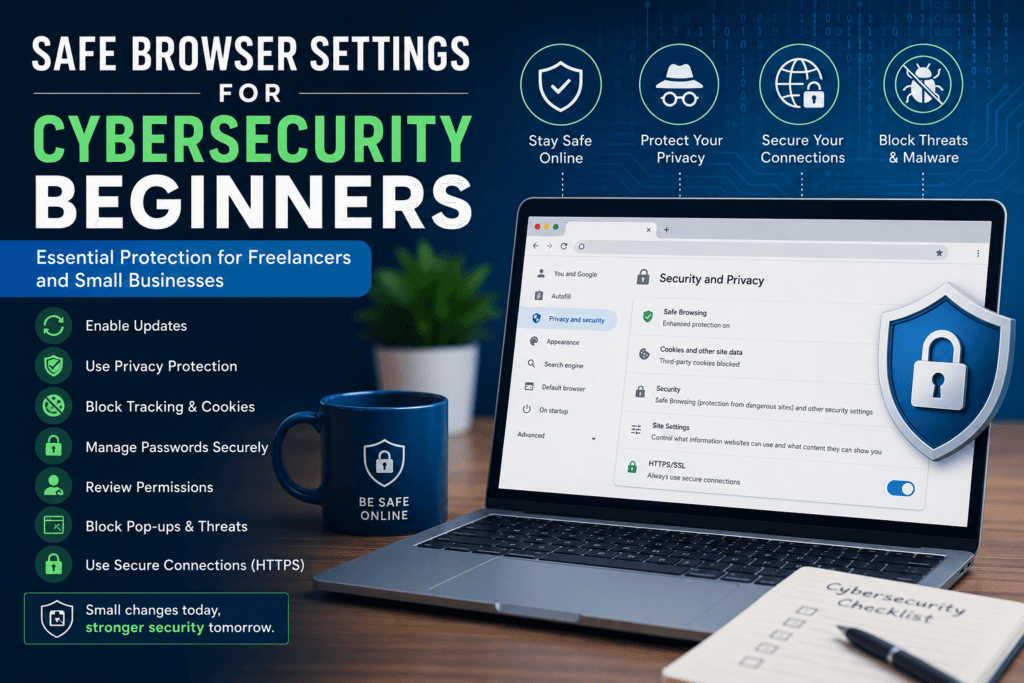
Safe browser settings for cybersecurity beginners are one of the easiest and most effective ways to reduce online security risks. Whether you are a freelancer handling client data or a small business owner managing customer information, your web browser is often the first line of defense against cyber threats. A few simple adjustments can help protect your accounts, devices, and sensitive information from hackers, phishing scams, and malware.
In today’s digital workplace, cybercriminals frequently target browsers because they serve as gateways to emails, cloud storage, banking platforms, and business applications. Learning how to configure secure browser settings can significantly improve your online safety without requiring advanced technical knowledge.
Why Safe Browser Settings for Cybersecurity Beginners Matter
Many people assume antivirus software alone is enough to stay secure. While antivirus tools are important, browsers remain a common attack vector. Unsafe settings can expose users to:
- Phishing websites
- Malicious downloads
- Data tracking
- Browser hijacking
- Credential theft
- Malware infections
For freelancers and small businesses in the United States, a browser compromise can lead to lost client trust, financial damage, and business disruption.
Safe Browser Settings for Cybersecurity Beginners: Enable Automatic Updates
One of the most important browser security practices is enabling automatic updates.
Browser developers regularly release security patches to fix newly discovered vulnerabilities. Running an outdated browser can leave your system exposed to known attacks.
Popular browsers such as Google Chrome, Mozilla Firefox, and Microsoft Edge offer automatic update features that should remain enabled at all times.
Benefits of Browser Updates
- Fix security vulnerabilities
- Improve malware protection
- Strengthen privacy controls
- Enhance website compatibility
Never delay browser updates, especially when security patches are released.
Turn On Enhanced Security Features
Modern browsers provide built-in security tools that many users never activate.
For example:
- Enhanced Safe Browsing in Chrome
- Enhanced Tracking Protection in Firefox
- Microsoft Defender SmartScreen in Edge
These features help identify dangerous websites before you interact with them.
When available, select the highest protection level that still allows normal browsing activities.
Use Strong Privacy and Tracking Protection
Many websites collect browsing data for advertising and analytics purposes. While not always malicious, excessive tracking increases privacy risks.
Recommended Privacy Settings
- Block third-party tracking cookies
- Enable anti-tracking protection
- Clear cookies periodically
- Restrict unnecessary website permissions
These settings help reduce your digital footprint and limit unauthorized data collection.
According to the cybersecurity guidance published by the Cybersecurity and Infrastructure Security Agency (CISA), users should regularly review browser privacy settings and keep software updated to strengthen cybersecurity defenses.
Safe Browser Settings for Cybersecurity Beginners: Manage Password Storage Carefully
Most browsers offer built-in password managers. While convenient, storing passwords directly in the browser may not always provide the highest level of protection.
Better Password Practices
- Use unique passwords for every account
- Enable multi-factor authentication (MFA)
- Consider a dedicated password manager
- Avoid saving passwords on public or shared computers
Freelancers often access multiple client platforms. Reusing passwords across accounts can significantly increase risk if one account becomes compromised.
Disable Unnecessary Browser Extensions
Browser extensions can improve productivity, but they can also introduce security vulnerabilities.
Before installing any extension:
- Verify the developer
- Read reviews
- Check requested permissions
- Remove unused extensions
Cybercriminals sometimes disguise malicious extensions as productivity tools.
Conduct a monthly review of installed extensions and remove anything you no longer use. If you want to remove malicious browser extension read full guide on How to Remove Malicious Chrome Extensions Safely: A Complete Guide for Freelancers and Small Businesses
Review Website Permissions Regularly
Many websites request access to:
- Camera
- Microphone
- Location
- Notifications
Granting excessive permissions may expose sensitive information.
Recommended Permission Settings
- Allow access only when necessary
- Revoke permissions after use
- Block notification requests from unknown websites
- Disable location access unless required
Review your browser permission settings every few months to ensure unnecessary access has not accumulated.
Enable Pop-Up and Malicious Download Protection
Pop-ups remain a common method used to distribute scams and malware.
Most browsers include built-in protection against:
- Suspicious downloads
- Fraudulent websites
- Unwanted pop-ups
Make sure these protections remain enabled.
If a website unexpectedly displays messages claiming your device is infected, avoid clicking any buttons. Instead, close the browser tab immediately.
Use Secure Connections Whenever Possible
Always look for HTTPS connections before entering sensitive information.
A secure website URL begins with:
https://
The padlock icon indicates that communication between your browser and the website is encrypted.
While HTTPS does not guarantee a website is legitimate, it does help protect transmitted data from interception.
Many modern browsers now offer an “Always Use Secure Connections” option. Enable this setting whenever available.
Configure Automatic Data Clearing
Over time, browsers accumulate:
- Cookies
- Cached files
- Browsing history
- Stored session data
While this information improves convenience, it may also increase privacy risks.
Recommended Practice
Configure your browser to:
- Clear cookies periodically
- Remove browsing history regularly
- Delete cached files when necessary
This is especially important for freelancers who work with multiple client accounts on the same device.
Be Careful with Browser Sync Features
Browser synchronization allows users to access bookmarks, passwords, and browsing history across multiple devices.
While convenient, compromised accounts can expose synced data.
To use browser sync securely:
- Enable MFA
- Use strong account passwords
- Review connected devices regularly
- Remove unused devices
This helps prevent unauthorized access to synchronized browser information.
Additional Browser Security Tips for Small Businesses
Beyond browser settings, small businesses should also:
- Train employees to identify phishing attacks
- Use endpoint protection software
- Back up important data regularly
- Restrict administrator privileges
- Develop an incident response plan
Browser security works best when combined with broader cybersecurity practices.For a broader cybersecurity strategy, read our Freelancer Cybersecurity Guide for practical security tips designed for freelancers and small businesses
Conclusion
Safe browser settings for cybersecurity beginners provide a simple yet powerful defense against modern cyber threats. By enabling automatic updates, strengthening privacy controls, reviewing permissions, removing unnecessary extensions, and using secure connections, freelancers and small businesses can significantly reduce their exposure to online risks.
Cybersecurity does not always require expensive tools or advanced expertise. In many cases, a few well-configured browser settings can prevent costly security incidents and help protect valuable business data.
Frequently Asked Questions
What are the safest browser settings for beginners?
The safest settings include automatic updates, enhanced security protection, blocking third-party cookies, enabling pop-up protection, and using HTTPS-only connections whenever possible.
Should freelancers use a password manager instead of browser password storage?
Yes. Dedicated password managers generally provide stronger security features, better encryption, and more advanced protection than browser-based password storage.
How often should I review browser permissions?
A review every one to three months is recommended to remove unnecessary permissions and improve privacy.
Are browser extensions dangerous?
Not all extensions are dangerous, but poorly maintained or malicious extensions can create security risks. Install only trusted extensions and remove unused ones regularly.
Can safe browser settings prevent phishing attacks?
Safe browser settings can reduce phishing risks by blocking known malicious websites and warning users about suspicious pages. However, users should still verify website legitimacy before entering sensitive information.