
Table of Contents
Chrome extensions can improve productivity, automate repetitive tasks, and simplify daily work. However, not every extension is trustworthy. Cybercriminals often disguise malicious browser extensions as useful tools to steal passwords, track browsing activity, inject ads, or collect sensitive business information.
For freelancers and small businesses in the USA, a malicious Chrome extension can expose client data, login credentials, financial information, and confidential communications. Understanding how to remove malicious Chrome extensions safely is an important part of protecting your business from cyber threats.
If you’re managing online work environments, you may also want to explore our complete cybersecurity foundation guide for freelancers and small businesses here:
👉https://cybersafetyzone.com/cybersecurity-for-freelancers/
How to Remove Malicious Chrome Extensions Safely and Identify Suspicious Behavior
Before removing an extension, it helps to recognize the warning signs that something may be wrong.
Common indicators include:
- Unexpected pop-up advertisements
- Browser redirects to unfamiliar websites
- Slow Chrome performance
- New toolbars appearing without permission
- Search engine settings changing automatically
- Unusual requests for permissions
- Increased CPU or memory usage
- Unauthorized access to business accounts
If you notice one or more of these symptoms, a malicious extension may be responsible.
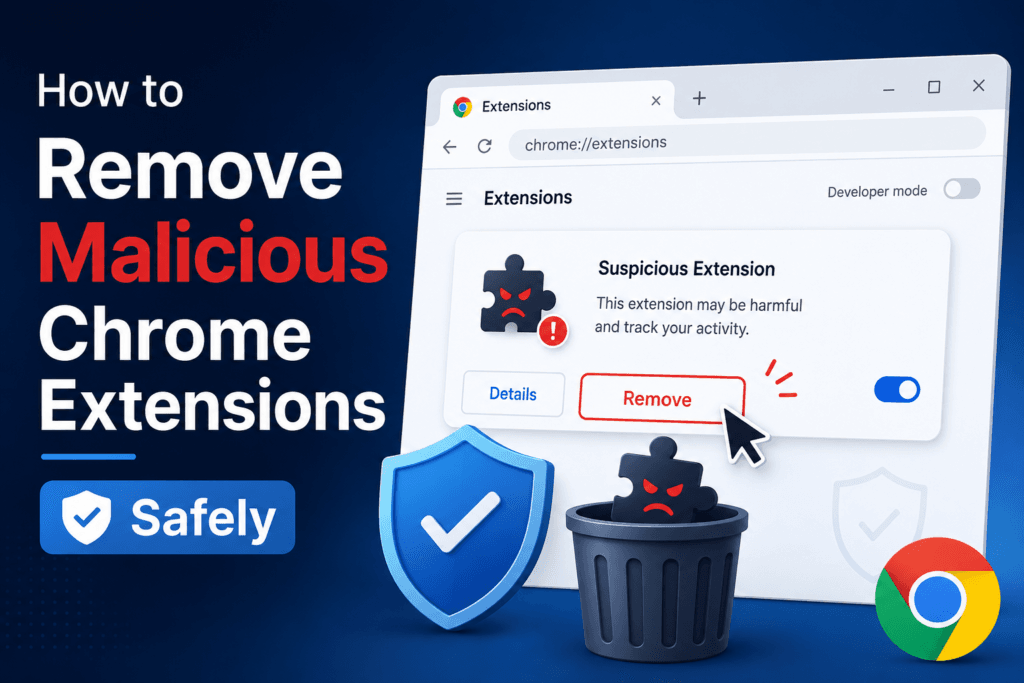
Remove a Suspicious Chrome Extension Using Chrome’s Extension Manager
The safest way to start is through Chrome’s built-in extension management page.Google’s official Chrome Help documentation explains how to manage and remove Chrome extensions.
Follow these steps:
- Open Google Chrome.
- Click the three-dot menu in the upper-right corner.
- Select Extensions and then Manage Extensions.
- Review every installed extension carefully.
- Look for extensions you do not recognize or no longer use.
- Click Remove beside suspicious extensions.
- Confirm the removal.
After removal, restart Chrome and monitor browser behavior.
Freelancers who frequently install productivity tools should review extensions regularly because many malicious extensions hide among legitimate business tools.
What to Do If a Malicious Chrome Extension Keeps Coming Back
Some advanced malicious extensions prevent removal by reinstalling themselves automatically.
If that happens:
- Open Chrome Extensions Manager.
- Enable Developer Mode.
- Note the extension ID of suspicious extensions.
- Remove the extension.
- Close Chrome completely.
- Check your computer for related software that may reinstall the extension.
On Windows, review:
- Startup programs
- Scheduled tasks
- Recently installed applications
Removing the associated malware is essential; otherwise, the extension may return after restarting your browser.
Check Chrome Extension Permissions for Warning Signs
One of the easiest ways to identify risky extensions is by reviewing permissions.
Be cautious if an extension requests access to:
- Read and change all website data
- Access browsing history
- Manage downloads
- Read clipboard contents
- Access passwords or authentication data
Many legitimate extensions require some permissions, but excessive access should raise concerns.
For example, a simple calculator extension does not need permission to read every website you visit.
Protect Important Data Before Removing an Extension
Many freelancers worry about deleting a useful extension by mistake.
Before removing an extension:
- Export any stored settings if possible.
- Save important bookmarks.
- Document workflows that rely on the extension.
- Research alternatives from trusted developers.
This approach helps maintain productivity while eliminating potential security risks.
Scan Your Device for Malware After Removing the Extension
Removing an extension alone may not solve the problem if malware exists elsewhere on the system.
After deleting suspicious extensions:
- Update your antivirus software.
- Run a full system scan.
- Check for unwanted programs.
- Install operating system updates.
- Update Chrome to the latest version.
Freelancers handling client information should perform a complete security review whenever a malicious extension is discovered.
Reset Chrome If Browser Problems Continue
If browser problems continue after removing extensions, resetting Chrome can help.
To reset Chrome:
- Open Chrome Settings.
- Select Reset Settings.
- Choose Restore Settings to Their Original Defaults.
- Confirm the reset.
This action removes temporary configurations that malicious extensions may have changed.
Your bookmarks, passwords, and browsing history typically remain intact, but customized settings may be reset.
How to Remove Malicious Chrome Extensions Safely to Protect Client Data
Freelancers and small businesses often store valuable information in browser sessions.
A malicious extension may access:
- Client contracts
- Project files
- Email accounts
- Payment platforms
- Cloud storage services
- Customer records
To reduce risk:
- Use a password manager.
- Enable multi-factor authentication.
- Limit extension installations.
- Install only extensions from trusted developers.
- Review extension permissions regularly.
These habits can significantly reduce the chances of a data breach.
How to Remove Malicious Chrome Extensions Safely and Prevent Future Infections
Prevention is easier than recovery.
Follow these best practices:
Install Fewer Extensions
Every extension increases your attack surface. Only install tools you genuinely need.
Read Reviews Carefully
Fake reviews are common. Look for detailed feedback and recent user experiences.
Verify the Developer
Research the company or developer before installing browser tools.
Update Chrome Regularly
Security updates help block newly discovered threats.
Monitor Browser Activity
Unexpected changes often indicate security problems.
Conduct Monthly Extension Audits
Review installed extensions at least once per month and remove anything unnecessary.
Why Freelancers and Small Businesses Are Targeted
Cybercriminals often focus on freelancers and small businesses because they typically lack dedicated IT teams.
Attackers know that:
- Smaller organizations may have fewer security controls.
- Browser extensions are often overlooked.
- Client information can be valuable.
- Employees may install tools without security reviews.
Understanding how to remove malicious Chrome extensions safely helps reduce these risks and supports stronger cybersecurity practices.
Conclusion
Knowing how to remove malicious Chrome extensions safely is essential for freelancers and small businesses that rely on Chrome for daily operations. Malicious extensions can steal sensitive information, compromise client data, and damage business reputation.
By reviewing installed extensions, checking permissions, removing suspicious tools, scanning your device, and following strong security practices, you can significantly reduce your exposure to browser-based threats. Regular extension audits and cautious installation habits will help keep your business, clients, and online accounts secure.
FAQs
1.How do I know if a Chrome extension is malicious?
Warning signs include browser redirects, excessive ads, unexpected permission requests, slow performance, and unauthorized changes to browser settings.
2.Can a Chrome extension steal passwords?
Yes. Some malicious extensions can capture login credentials, browsing activity, and sensitive information if granted excessive permissions.
3.Is removing the extension enough?
Not always. If malware installed the extension, you should also scan your device for malicious software and remove any related programs.
4.How often should I review Chrome extensions?
A monthly review is recommended for freelancers and small businesses that frequently use browser-based productivity tools.
5. Can Chrome’s built-in security detect malicious extensions?
Chrome includes security protections, but no system is perfect. Regular reviews and safe browsing habits remain important.
6.Should small businesses limit employee-installed extensions?
Yes. Establishing approved extension policies can reduce security risks and protect sensitive company and client information.
You can also read how attackers specifically steal credentials in detail here:
How Malicious Chrome Extensions Steal Passwords From Freelancers (And How to Stay Safe)