Table of Contents
If you’re wondering how to prevent Zoom bombing, you’re not alone. As more freelancers and small businesses rely on Zoom for client meetings, remote collaboration, webinars, and virtual consultations, cybercriminals continue looking for ways to disrupt online meetings. A single Zoom bombing incident can expose confidential discussions, damage your professional reputation, and even result in lost business.Want to protect your freelance business from cyber threats? Our complete Cybersecurity for Freelancers and Small Businesses Guide walks you through essential security steps, tools, and best practices to protect client data, secure your accounts, and build a safer digital workspace.
Whether you’re meeting with clients, conducting interviews, or hosting training sessions, securing your Zoom meetings should be a top priority. Fortunately, preventing Zoom bombing doesn’t require advanced technical skills. By enabling the right security settings and following a few best practices, you can significantly reduce the risk of unauthorized access.
In this guide, you’ll learn how to prevent Zoom bombing, why it happens, and the best Zoom security tips to protect your business in 2026.
What Is Zoom Bombing?
Zoom has introduced several security improvements over the years, including waiting rooms, meeting passwords, and enhanced encryption. You can learn more about these features on the Zoom Security Center: https://explore.zoom.us/en/trust/security/
Zoom bombing occurs when an unauthorized person joins a Zoom meeting without permission and intentionally disrupts it. This may include:
- Sharing offensive images or videos
- Posting inappropriate messages in the chat
- Interrupting meetings with loud noises or abusive language
- Attempting to steal sensitive business information
While Zoom has introduced stronger security features over the years, attackers still target poorly secured meetings. Public meeting links, weak passwords, and disabled waiting rooms remain common causes of Zoom bombing.
For freelancers and small businesses, even one disrupted client meeting can affect trust and professionalism.
Why Freelancers and Small Businesses Are Prime Targets
Unlike large enterprises with dedicated IT teams, freelancers and small businesses often manage cybersecurity themselves. This makes it easier to overlook important Zoom security settings.Using secure messaging apps for freelancers can help protect private conversations with end-to-end encryption and reduce the risk of unauthorized access. Unlike regular messaging tools, privacy-focused communication apps provide stronger security features that help freelancers safely communicate with clients and remote teams.
Attackers may target your meetings to:
- Access confidential client discussions.
- Disrupt paid consultations or webinars.
- Gather personal or financial information.
- Damage your company’s reputation.
- Spread phishing links through the meeting chat.
If you regularly discuss contracts, invoices, customer information, or business strategies on Zoom, securing every meeting is essential.
How to Prevent Zoom Bombing
The following security measures can dramatically reduce the chances of unauthorized participants joining your meetings.
1. Always Require a Meeting Password
One of the easiest ways to prevent Zoom bombing is by enabling meeting passwords.
Without a password, anyone who obtains your meeting ID can attempt to join. Password protection adds an extra layer of security that blocks random participants.
Instead of sharing the meeting ID publicly, send the password directly to invited attendees.
2. Enable the Waiting Room Feature
The Waiting Room allows you to review participants before admitting them into the meeting.
This feature gives you complete control over who enters your virtual meeting room.
Before admitting participants:
- Verify unfamiliar names.
- Confirm guest identities if necessary.
- Remove suspicious users before they enter.
For client meetings, this is one of the most effective Zoom security features.
3. Never Share Meeting Links Publicly
Many Zoom bombing incidents happen because meeting links are posted on:
- X (Twitter)
- Public websites
Instead, send meeting invitations through:
- Secure messaging apps
- Private client portals
Avoid publishing Zoom links where search engines or strangers can find them.
4. Lock the Meeting After Everyone Has Joined
Once all expected participants have entered the meeting, Zoom allows you to lock it.
A locked meeting prevents anyone else from joining—even if they have the meeting ID and password.
This simple feature is especially useful for:
- Client consultations
- Team meetings
- Internal business discussions
5. Restrict Screen Sharing
One common Zoom bombing tactic involves unauthorized users sharing offensive content.
Prevent this by allowing only the host (or approved participants) to share their screen.
You can change this setting before or during the meeting.
Unless someone genuinely needs to present, there is no reason to allow everyone to share their screen.
6. Mute Participants Upon Entry
Another effective way to prevent Zoom bombing is to mute participants when they join the meeting. This prevents disruptive users from interrupting your presentation or client discussion.
As the host, you can allow attendees to unmute themselves only when it’s appropriate. For webinars, training sessions, or large meetings, keeping participants muted until a Q&A session helps maintain professionalism.
7. Disable File Transfer if You Don’t Need It
Zoom allows participants to share files through the chat feature. While convenient, it can also become a security risk.
A malicious participant could send:
- Malware
- Fake invoices
- Phishing documents
- Suspicious links
If file sharing isn’t necessary for your meeting, disable it in your Zoom settings. Instead, share documents using trusted cloud storage services like Google Drive, Microsoft OneDrive, or Dropbox with proper access permissions.
8. Require Authentication for Sensitive Meetings
If you’re discussing financial information, contracts, or confidential client data, require participants to sign in to Zoom before joining.
Authentication ensures that only verified users can access your meeting, reducing the risk of strangers entering with anonymous names.
This feature is especially valuable for:
- Legal consultations
- Client strategy meetings
- Financial planning sessions
- Healthcare consultations
- HR interviews
9. Keep Zoom Updated
Cybercriminals often exploit software vulnerabilities that have already been patched.
Zoom regularly releases security updates that fix bugs and improve protection against emerging threats. Enable automatic updates or regularly check for new versions before hosting important meetings.
Running outdated software increases your exposure to known security risks.
10. Remove Suspicious Participants Immediately
If someone joins your meeting unexpectedly:
- Remove them immediately.
- Lock the meeting.
- Disable participant screen sharing.
- Restrict chat if necessary.
- Report abusive users to Zoom.
Acting quickly can prevent a minor interruption from becoming a serious security incident.
Best Zoom Security Settings to Enable
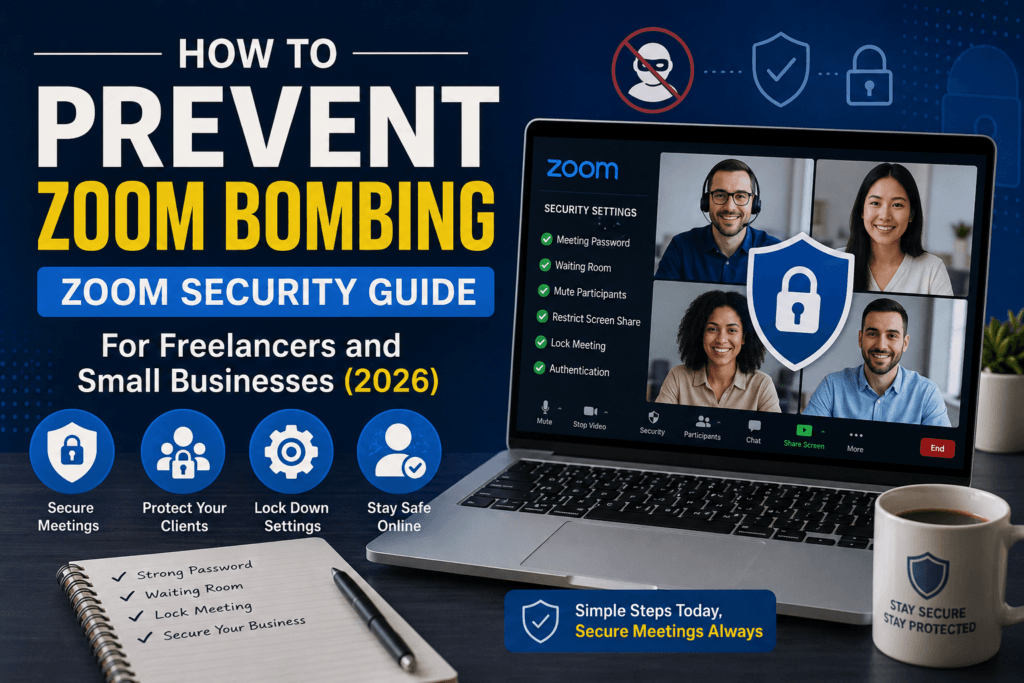
Before hosting your next meeting, review these essential settings:
- ✔ Enable a meeting password.
- ✔ Turn on the Waiting Room.
- ✔ Allow only the host to share their screen.
- ✔ Lock meetings after all participants have joined.
- ✔ Require authentication for confidential meetings.
- ✔ Mute participants upon entry.
- ✔ Disable unnecessary file transfers.
- ✔ Keep Zoom updated.
- ✔ Avoid using your Personal Meeting ID (PMI) for client meetings.
- ✔ Review participant permissions before every meeting.
These settings take only a few minutes to configure but significantly improve your Zoom security.
The U.S. Cybersecurity and Infrastructure Security Agency (CISA) also recommends following secure practices for online collaboration tools and remote meetings. Their guidance can help businesses reduce cybersecurity risks.
Common Zoom Security Mistakes
Many Zoom bombing incidents happen because of simple mistakes.
Avoid these common errors:
- Sharing meeting links publicly on social media.
- Reusing the same meeting ID repeatedly.
- Leaving meetings unlocked.
- Ignoring Zoom software updates.
- Allowing all participants to share screens.
- Forgetting to enable the Waiting Room.
- Using weak or no meeting passwords.
By avoiding these mistakes, you’ll make your virtual meetings much more secure.
Conclusion
Learning how to prevent Zoom bombing is an important part of protecting your business in today’s remote work environment. Freelancers and small businesses often rely on Zoom to communicate with clients, partners, and employees, making secure meetings essential.
Fortunately, preventing Zoom bombing doesn’t require expensive security tools. Simple measures like enabling passwords, using the Waiting Room, restricting screen sharing, requiring authentication, and keeping Zoom updated can dramatically reduce your risk.
A few minutes spent reviewing your Zoom security settings before each meeting can protect sensitive conversations, maintain client trust, and help your business operate more securely in 2026.
Frequently Asked Questions (FAQs)
1.What is Zoom bombing?
Zoom bombing is when unauthorized individuals join a Zoom meeting to disrupt it by sharing offensive content, sending spam, or interrupting discussions.
2.How can I prevent Zoom bombing?
You can prevent Zoom bombing by enabling meeting passwords, using the Waiting Room, restricting screen sharing, requiring authentication, and locking meetings after all participants have joined.
3.Is Zoom secure for freelancers and small businesses?
Yes. Zoom offers several built-in security features that make it secure when configured correctly. Using the recommended settings can greatly reduce security risks.
4.Should I share my Zoom meeting link publicly?
No. Sharing meeting links on public websites or social media increases the risk of unauthorized users joining your meeting. Always share links privately with invited participants
5.Does Zoom encrypt meetings?
Yes. Zoom supports encryption for meetings, and many meetings are protected with encryption while data is transmitted. For details about available encryption options and security features, refer to Zoom’s official documentation.